

Creating an Imported list campaign
The Imported list campaign runs your prospecting on contacts uploaded from a spreadsheet — a list of LinkedIn profiles you already have mapped out and previously imported into the platform. It is the ideal type for working your own lists, event lists or bases coming from other tools.
The big differentiator of this campaign type is the smart handling of the list: those who are not your connections yet get the prospecting flow, and those who already are connections can get a remarketing approach — or be skipped, you choose.
Before you start
- Have a LinkedIn account connected — see Connecting Channels;
- Have your list already imported into the system, through the Lists menu — see the Importing lists tutorial (coming soon);
- Have the AI agents that will be used already set up — see the AI agents tutorial (coming soon).
Step 1 — Select the list
In the LinkedIn area, click New Campaign and, under Contact source, choose Imported list. Step 1 of 2 opens, called Select a list — uses an imported contact list; profiles with LinkedIn get an invite, and existing connections are handled separately.
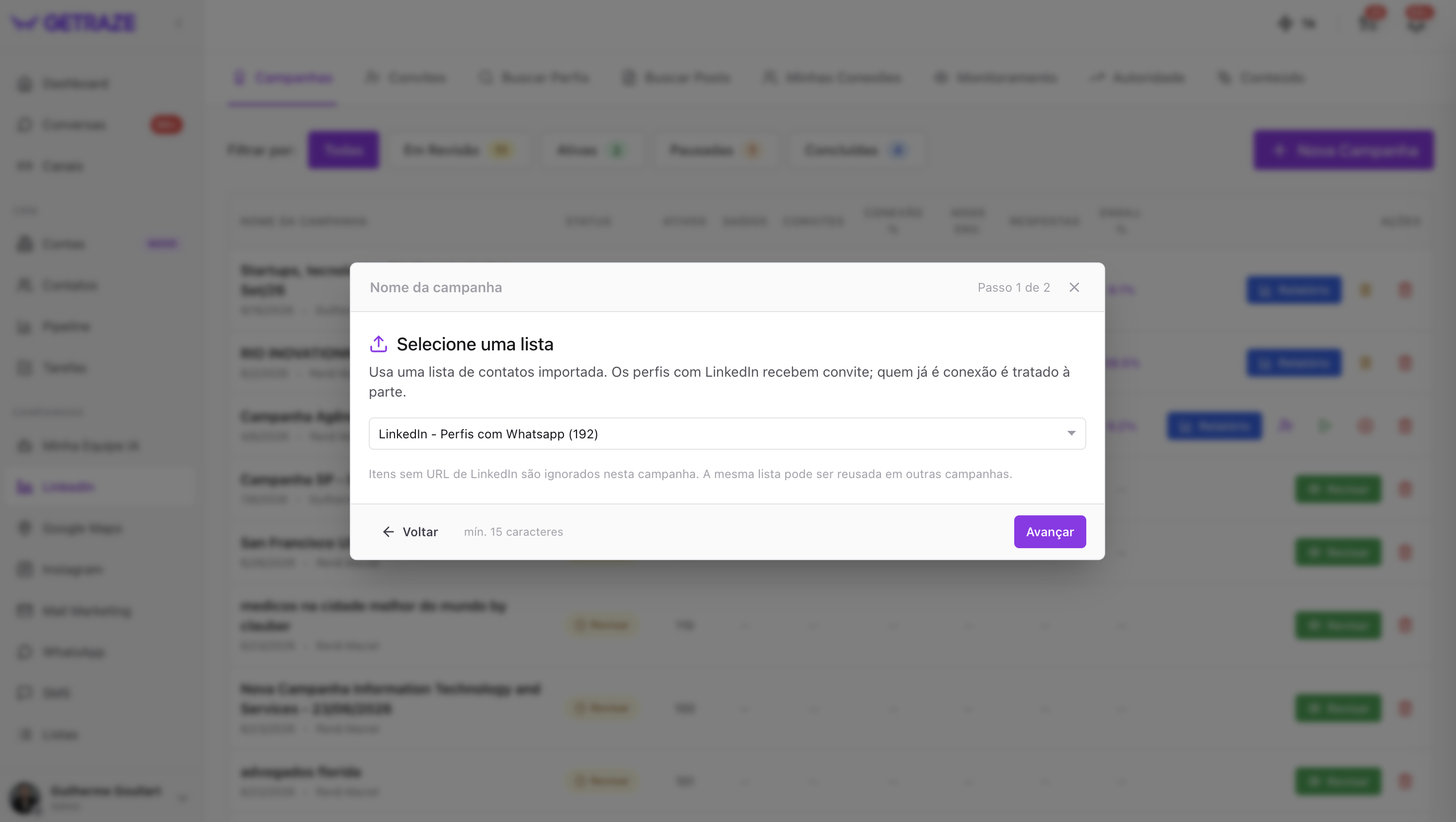
- Campaign name — at the top of the window.
- Choose the list in the selector. It shows the name of each list and how many items it has.
- Click Next.
⚠️ Items without a LinkedIn URL are ignored in this campaign. If your list has contacts that only have a phone number or email, they are left out — which explains why the campaign reaches fewer people than the list seems to have.
💡 The same list can be reused in other campaigns. Selecting it here neither consumes nor locks it.
Step 2 — Name the campaign
- Type the campaign name.
- The description is optional.
- Click Next.
Step 3 — LinkedIn accounts and agents
LinkedIn Accounts
Select which LinkedIn accounts will take part in this action. You can select one or more accounts — the invites will be distributed evenly across them.
Agents
Here you define two agents, one for each situation of the contacts on the list:
| Agent | Who it reaches |
|---|---|
| Main agent | All selected contacts on the list who are not yet your connections on LinkedIn |
| Remarketing agent (optional) | The list members who already are your connections |
About the remarketing agent:
- If you keep the None — skip existing connections option on, the people who are already your connections will not receive any message;
- If you want them to be approached too, select a remarketing agent — and all list members who are already your contacts will be reached by it.
Step 4 — Create the campaign
Click Create campaign. Done — your Imported list campaign will start! ✅
How to know it worked
- The campaign shows up on the Campaigns screen with an active status;
- In the Report, the invites (for non-connections) and the messages (for connections, if you turned on remarketing) start being recorded.
Common issues
My list does not show up in the selection
The Imported list campaign only sees lists already imported into the platform. Import yours first through the Lists menu and then create the campaign.
The campaign picked up fewer contacts than my list has
The campaign only uses the items that have a LinkedIn URL — the others are ignored. Check how many contacts on your list have their LinkedIn profile filled in.
People who were already my connections didn't receive anything
Check whether the None — skip existing connections option was left on at creation. In this mode, existing connections are skipped on purpose. To approach them, select a remarketing agent in the campaign.
Next steps
- Track the results in the Campaign report;
- Learn how to import lists (tutorial coming soon) to feed new campaigns;
- Learn about the Continuous campaign for flows that receive leads on demand.