

Connecting Channels
GetRaze brings all of your communication into one place. The first step is to connect the channels you use to talk to your leads and customers — LinkedIn, WhatsApp, Instagram, Facebook, Telegram and others.
This guide shows how to reach the channels area and how to connect each one of them.
Before you start
Have the credentials of the channel you are about to connect at hand:
- LinkedIn, Instagram, Facebook and Telegram — the account's login and password;
- WhatsApp QR Code — the phone with the number that will be connected;
- WhatsApp Cloud API — access to your BM (Business Manager) on Meta;
- Twilio and Wati — the API keys, available in each platform's dashboard.
Reaching the Connected Channels area
- At the bottom of the side menu, click your avatar (your profile picture with your username).
- Click Settings.
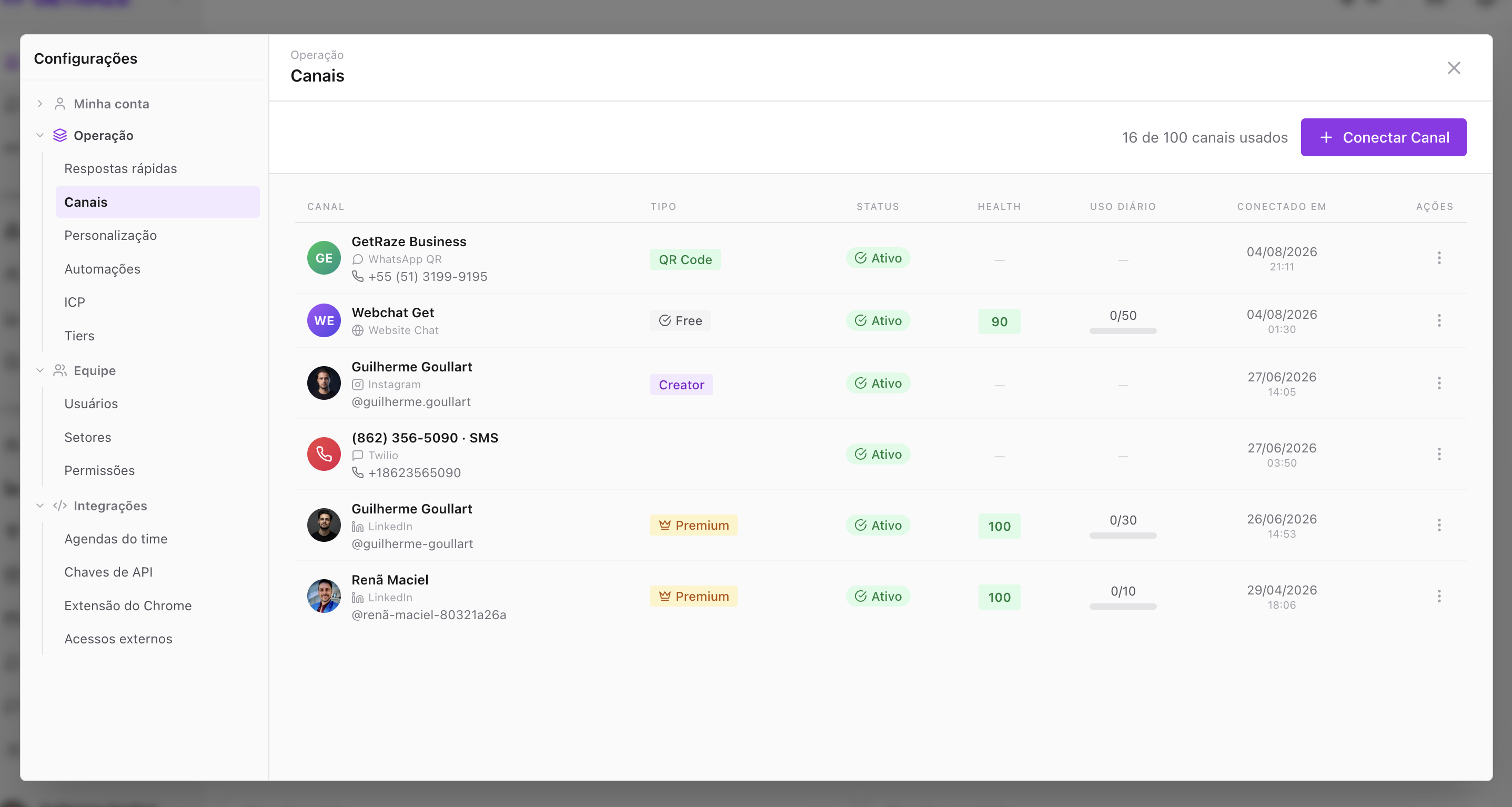
- In the settings menu, go to Connected Channels.
💡 Shortcut: you can also go straight there through app.getraze.co/?settings=channels.
On this screen you see the list of every channel already connected to your account, with its status, connection health and daily usage.
Connecting a new channel
- In the top right corner of the Connected Channels screen, click + Connect Channel.
- A window opens with every channel available for connection.
- Click the channel you want and follow the connection instructions.
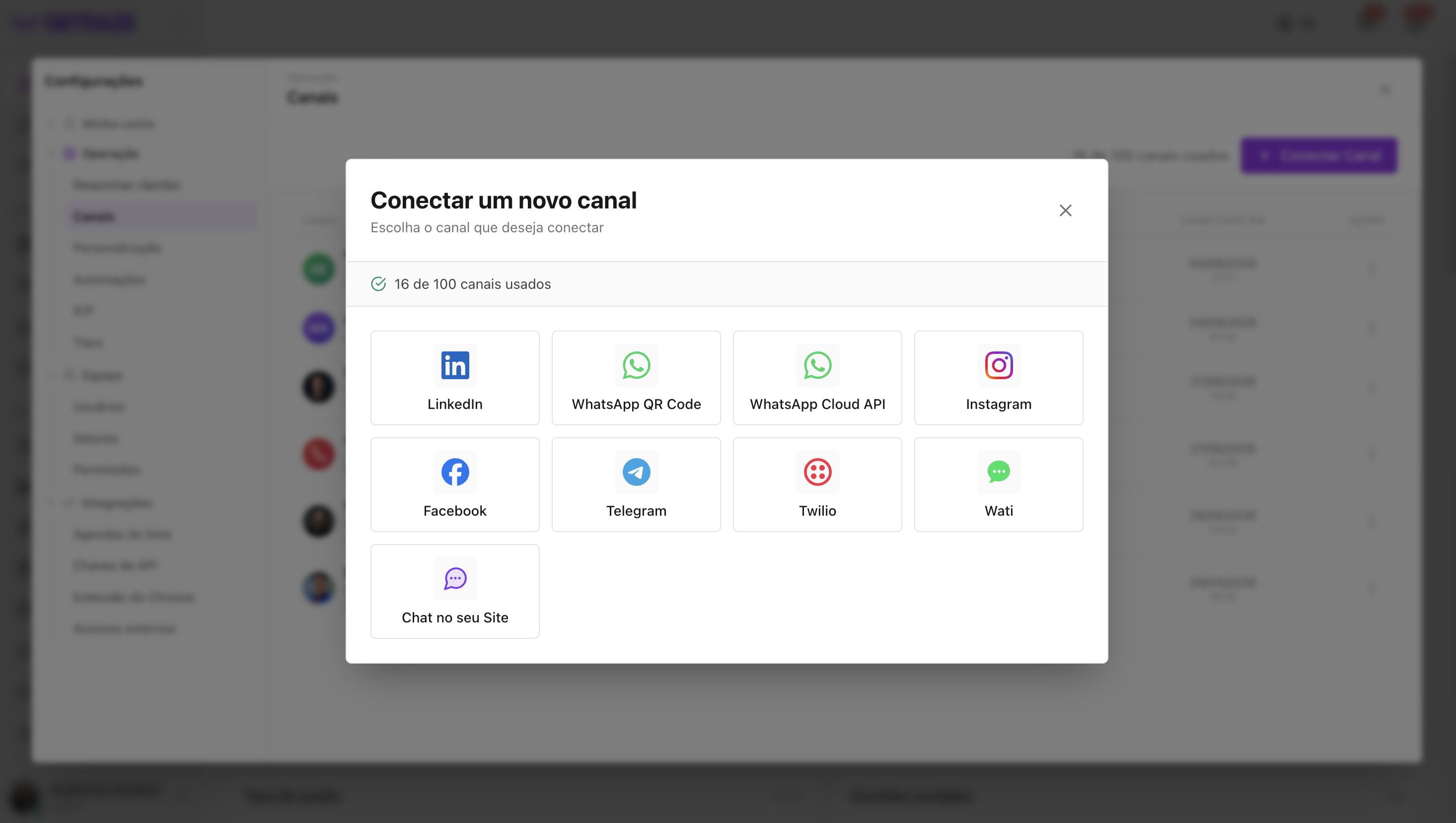
Each channel has its own connection method: some ask only for login and password, while others use API keys or additional settings. The step by step for each one is below.
LinkedIn
- In the connection window, click the LinkedIn icon and then Connect LinkedIn.
- Type the login and password of your LinkedIn account.
- If your account has two-step verification enabled, LinkedIn sends a code by SMS or through your authenticator app. Enter that code in the platform.
- Done! Your LinkedIn is connected. ✅
WhatsApp
GetRaze offers two ways to connect WhatsApp:
| Option | How it works | Best for |
|---|---|---|
| WhatsApp QR Code | Connects your number by scanning a QR Code, like WhatsApp Web | Getting started fast, using your current number |
| WhatsApp Cloud API | Connection through Meta's official API | Sending at scale and more robust operations |
WhatsApp QR Code
- In the connection window, click WhatsApp QR Code.
- Type a name for your instance — this is the internal name used in the platform so you can tell which number it is.
- Click Continue. The platform generates a QR Code.
- On your phone, open WhatsApp and go to Linked devices → Link a device.
- Point your phone's camera at the QR Code on the screen.
- Done! Your WhatsApp is connected. ✅
WhatsApp Cloud API
Connecting through the Cloud API uses Meta's official WhatsApp API. Click the WhatsApp Cloud API icon and choose one of the two setup paths:
Option 1 — Assisted connection (recommended)
The connection happens directly on Meta's own screens:
- Click Assisted connection.
- Follow Meta's flow by clicking Next, doing the setup inside your BM (Business Manager).
- At the end of the flow, the connection is made automatically.
Option 2 — Manual setup
Meant for those who already have an app configured on Meta:
- Go to your app at developers.facebook.com.
- Copy the tokens, the phone number ID and the remaining parameters of your app.
- Enter this data in GetRaze and finish the connection.
Instagram and Facebook
Instagram and Facebook are the simplest connections:
- In the connection window, click the Instagram or Facebook icon.
- Click Connect Instagram (or Connect Facebook).
- Meta's screen opens. Enter your login and password.
- Done! Your Instagram or Facebook is connected. ✅
Telegram
- In the connection window, click the Telegram icon and then Connect Telegram.
- Enter your login and password.
- Done! Your Telegram connection is complete. ✅
Twilio
The Twilio integration lets you send and receive WhatsApp messages and also SMS — including bulk sending and SMS campaigns.
- In the connection window, click Connect Twilio.
- Fill in the connection parameters:
| Field | Where to find it |
|---|---|
| Account SID | Twilio dashboard |
| API Key SID | Twilio dashboard |
| API Key Secret | Twilio dashboard |
| Friendly name (optional) | You define it — it identifies this Twilio account inside the platform |
- Click Connect and you're done. ✅
💡 The first three parameters live inside the Twilio dashboard, in your account's API Keys area.
Wati
The Wati integration lets you connect a WhatsApp number you already use on Wati and run GetRaze on top of it — without cancelling your Wati subscription.
With this connection, you can use GetRaze as:
- Conversations module — centralize support in GetRaze's inbox;
- CRM — organize your leads and deals;
- AI agents — put GetRaze's agents to work on your Wati number.
To connect:
- In the connection window, click the Wati icon.
- Fill in the connection parameters:
| Field | Where to find it |
|---|---|
| API Endpoint | Wati dashboard, under Connectors → API |
| Access Token | Wati dashboard, under Connectors → API |
| Friendly name (optional) | You define it — it identifies this Wati connection inside GetRaze |
- Click Connect and you're done. ✅
Website Chat
Website Chat lets you add a GetRaze chat directly to your site — that conversation bubble that usually sits in the bottom right corner of the page.
- In the connection window, click Website Chat.
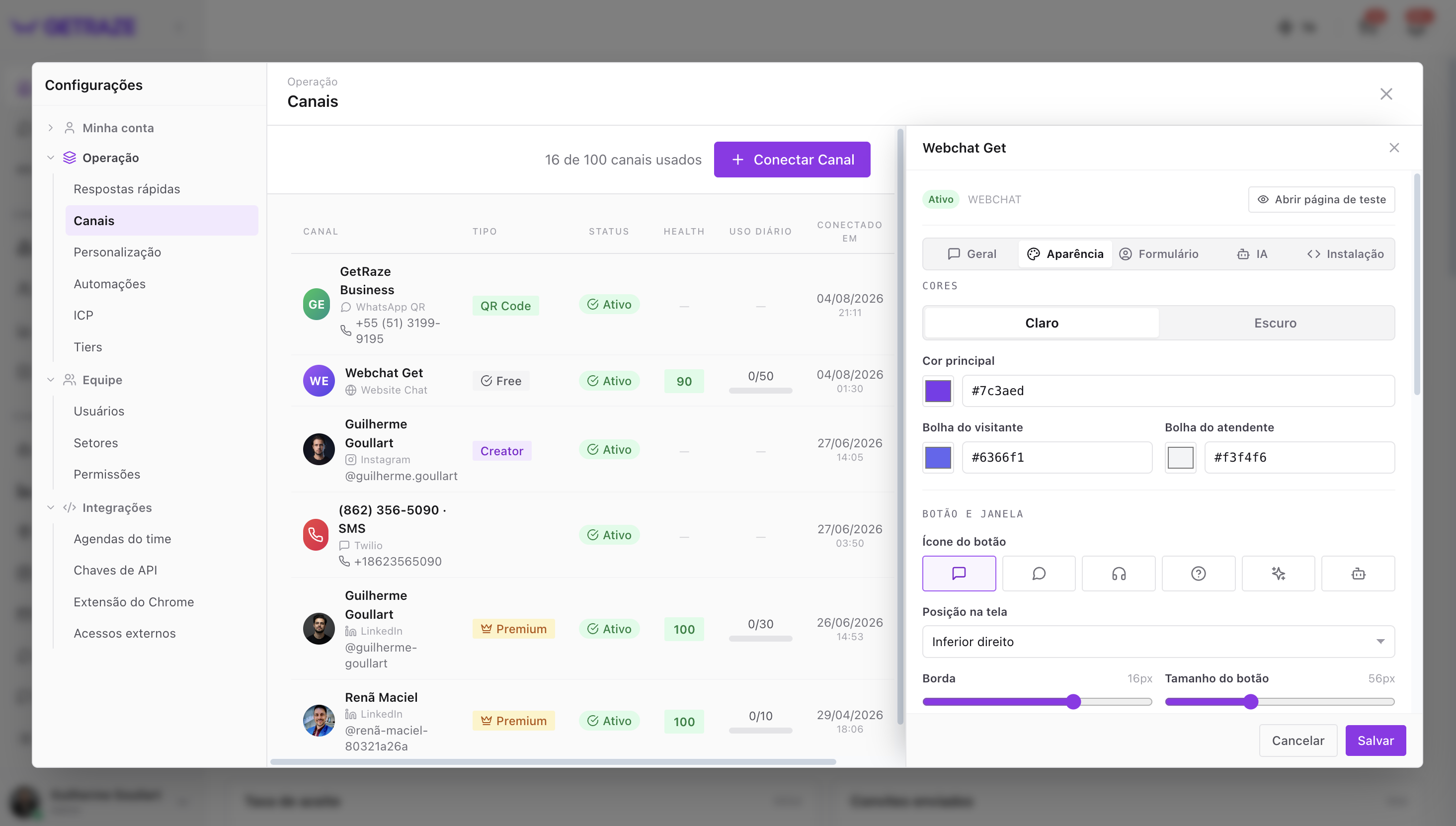
- Define the channel name.
- Set up the proactive greeting — the first message the visitor sees.
- Choose the chat colors, to match your site's visual identity.
- Finish the settings and install the chat on your site.
💡 How our customers use it: Website Chat is widely used on company sites, landing pages, sales pages and support pages — to serve visitors in real time and convert more, with or without AI agents answering.
How to know it worked
Go back to the Connected Channels screen: the channel you just connected shows up in the list with the Active status, along with the connection date and the account information.
Next steps
With your channels connected, you can now:
- Set up your AI agents to answer automatically;
- Manage every conversation in the omnichannel inbox;
- Create your first prospecting campaigns.