

Tasks area: Inbox and views
The Tasks menu brings the full management of your tasks and your team's into one place. It is split into four tabs:
- Inbox — what needs your attention right now;
- Tasks — the full board, with filters and views;
- Playbooks — groups of standardized tasks and their runs;
- Mind Maps — your mind maps, which can be linked to tasks and customers.
This article covers the Inbox and the Tasks tab. For the others, see Playbooks and Mind Maps.
Inbox
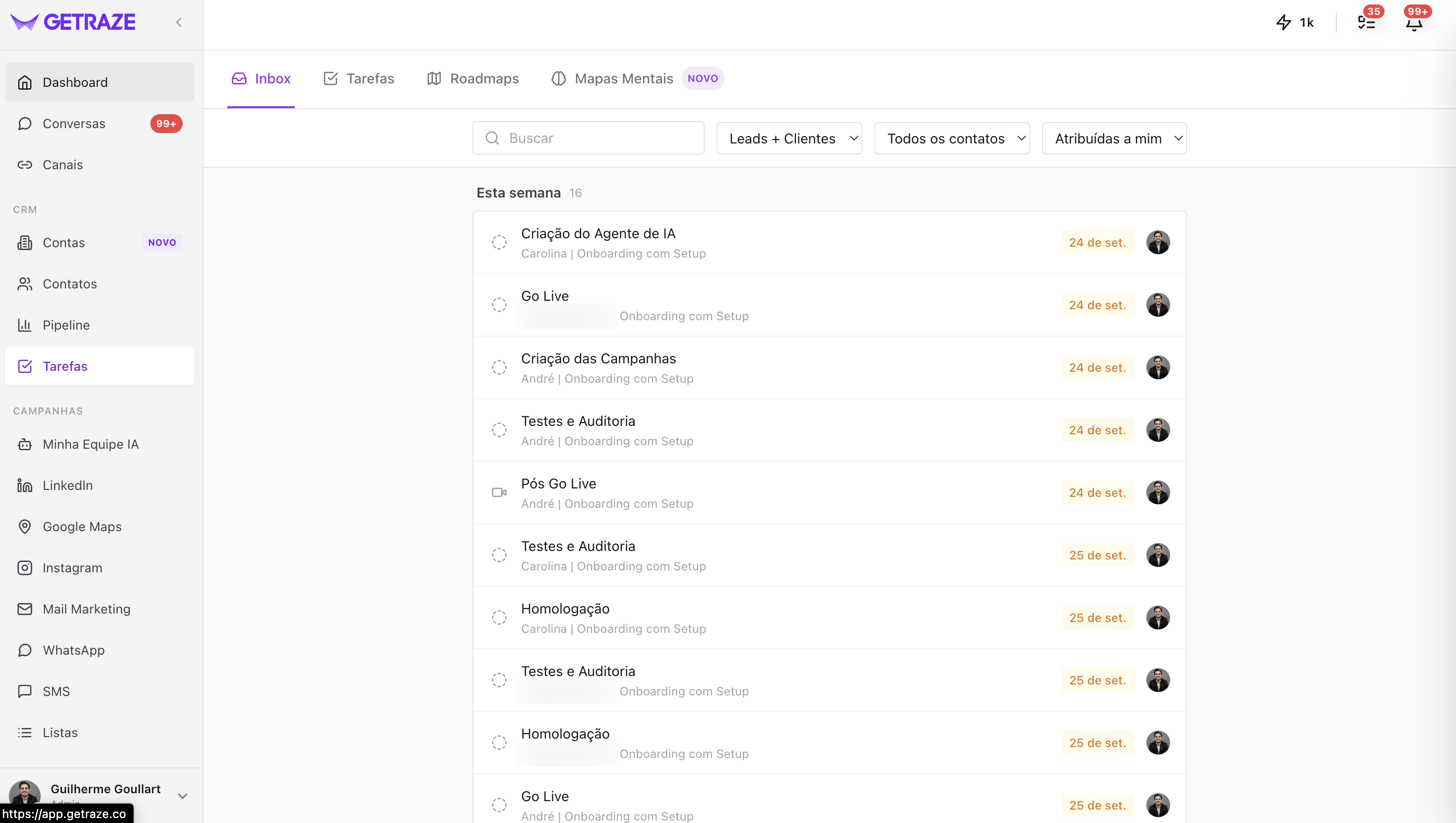
The Inbox is your priority hub: there you check overdue tasks, the ones close to their due date and your upcoming tasks, grouped by period — each block already carries the count.
At the top sit the search and three slices:
| Control | What it does |
|---|---|
| Search | Finds a task by its title |
| Leads + Customers | Slices by the type of linked contact |
| All contacts | Slices by a specific contact |
| Assigned to me | Slices by owner — by default, only yours |
Each row shows the task's title, the owner and the pipeline right below, the due date and the avatar of whoever answers for it. An icon on the left indicates the type, when the task has one.
Clicking a task opens it in full — with every detail and setting. See The task screen.
Tasks tab
Clicking the Tasks tab gives you the full board with every task organized by date:
Overdue · Today · Tomorrow · This Week · Next Week · Later · No date
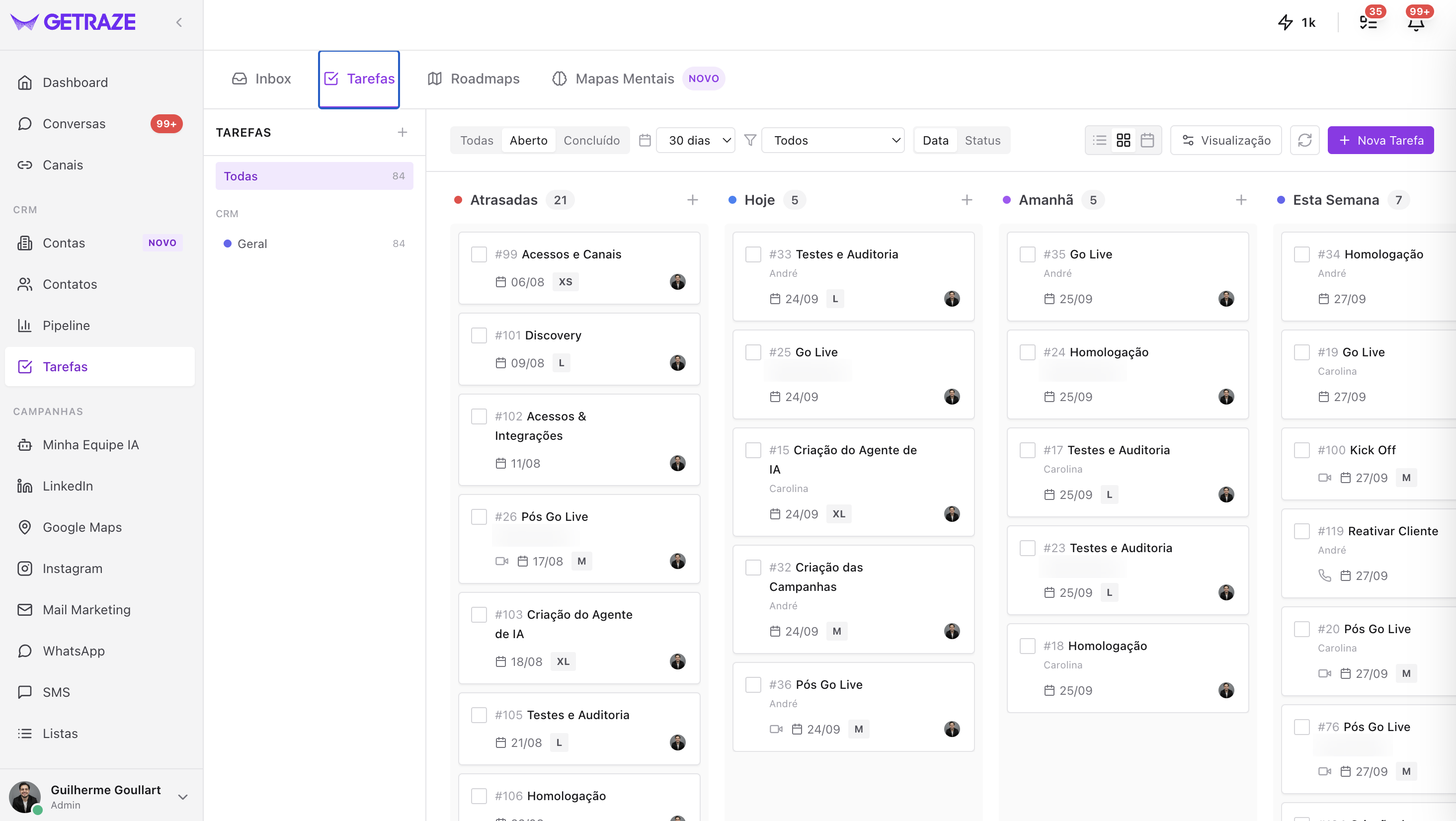
Each column carries its count and a + in the corner, which creates a task already with that due date. The cards show the task's number, the title, the owner, the due date and the size.
On the left panel are the task lists — All and the ones grouped by origin, such as those from the CRM — also with each one's count.
The control bar
| Control | What it does |
|---|---|
| All · Open · Completed | Shows everything, only what is open, or only what is already done |
| Period | Limits the board to a time window, such as the last 30 days |
| Filter | Slices the board by the remaining criteria |
| Date · Status | Switches the columns' grouping |
| View modes | The three icons that switch between List, Kanban and Calendar |
| View | Chooses which fields appear on the cards |
| Refresh | Reloads the board |
| + New Task | Creates a task from this menu |
Grouping: by Date or by Status
The Date · Status toggle switches the columns' logic:
- Date — the time columns shown above;
- Status — columns by situation: Pending, In progress and Completed.
View modes
The three icons on the right choose how the board is drawn:
- List;
- Kanban;
- Calendar.
View button
Clicking View opens a menu split into two lists — Visible fields and Hidden fields. Click a field to move it from one to the other and leave the card the way that works best for you.
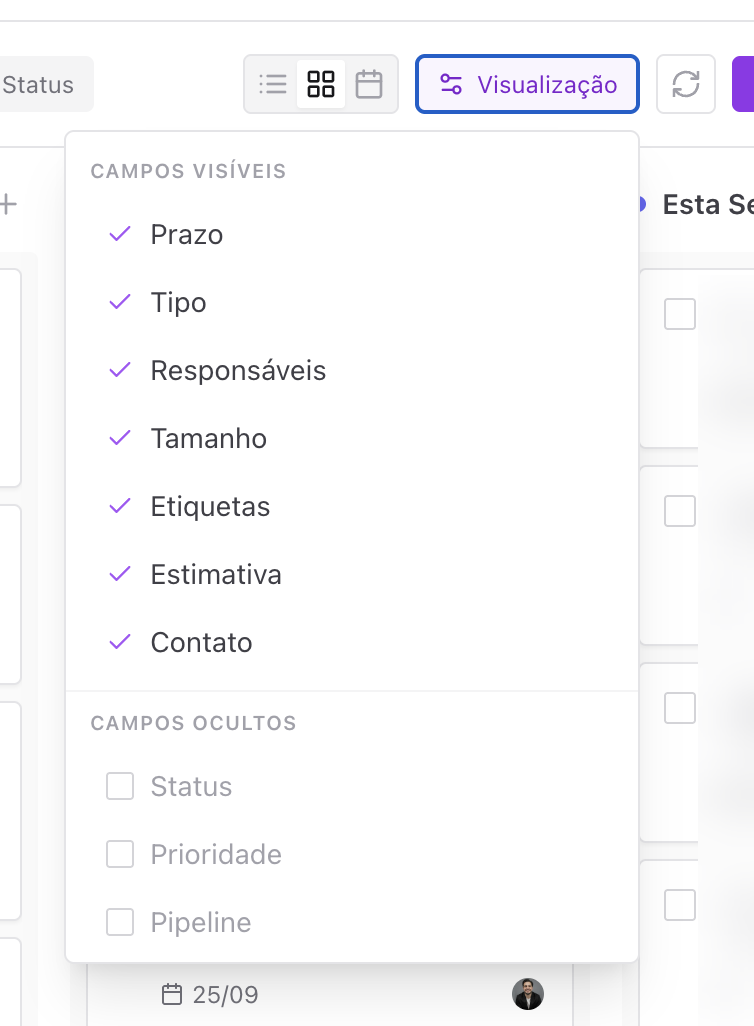
The ten fields you can show or hide: due date, type, assignees, size, tags, estimate, contact, status, priority and pipeline.
💡 Fewer fields make the board easier to scan; more fields save you from opening the task to check a detail. It is worth having one setup for the day-to-day board and another for the weekly review.
New task
The purple + New Task button creates tasks directly from this menu — and each column's + creates one already with that column's due date.
Next steps
- Get to know the task screen in detail — checklist, dependencies, reminders and more;
- Standardize repetitive processes with Playbooks;
- Link Mind Maps to your tasks and customers.