

Creating a campaign for My connections
The My connections campaign sends direct messages to your 1st-degree contacts — people who are already connected to you on LinkedIn. Since the invite has already been accepted, there is no connection barrier — it is the ideal type for working, reactivating and getting value out of the base you have already built.
Before you start
- Have a LinkedIn account connected to the platform — see Connecting Channels;
- Have a remarketing AI agent set up — it is the only agent type available for this campaign type (see the AI agents tutorial, coming soon).
Step 1 — Select the contact list
In the LinkedIn area, click New Campaign and, under Contact source, choose My connections. Step 1 of 2 opens, called Select the contact list — the agent sends a direct message to these contacts, without an invite.
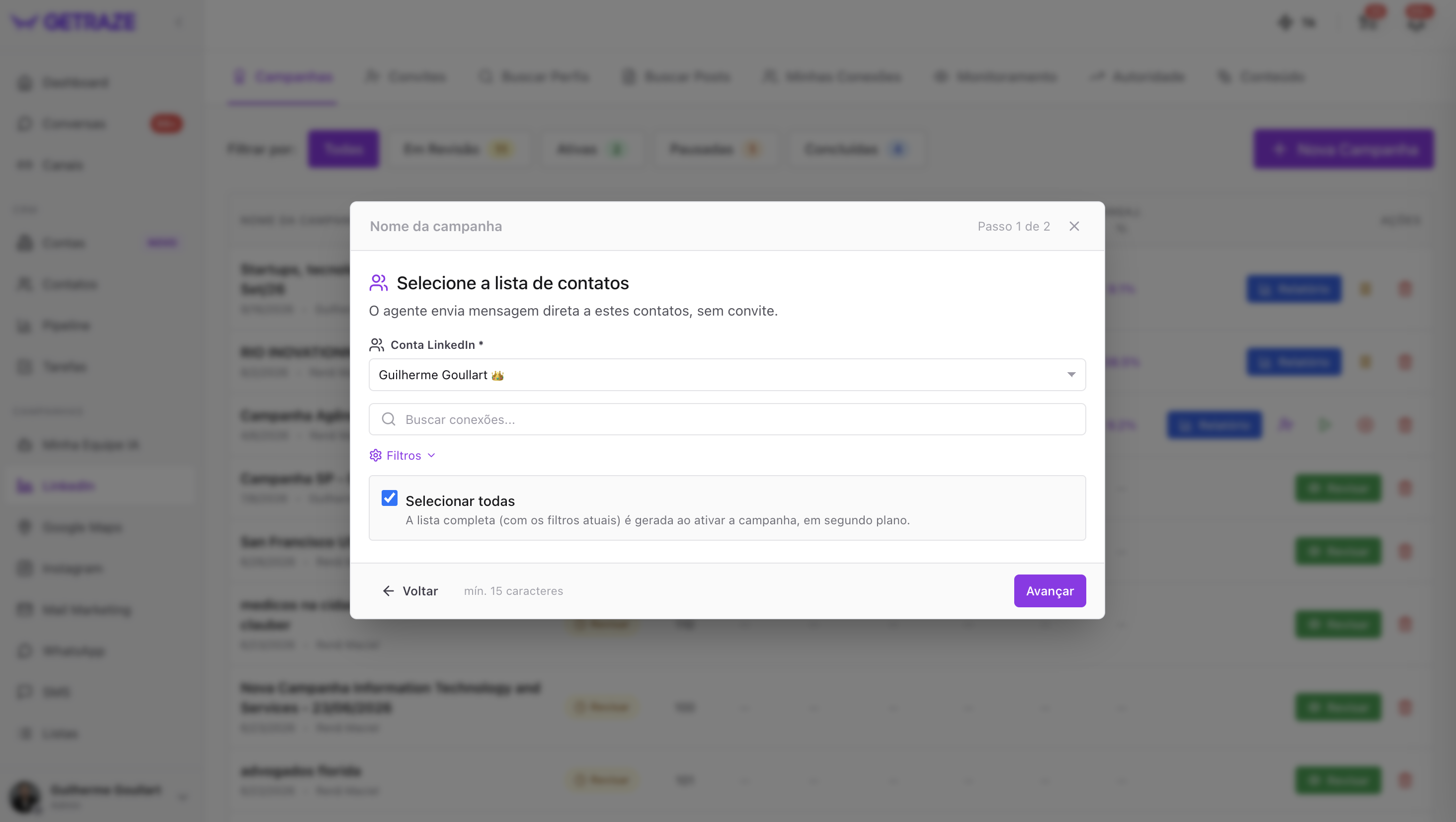
- Campaign name — at the top of the window.
- LinkedIn account — choose which account the messages will be sent from.
- Refine who goes into the campaign:
- Use the connections search to find specific people;
- Open Filters to narrow down your base.
- Leave Select all checked to include everyone who matches the current filters.
- Click Next.
💡 With Select all checked, the full list is not built now: it is generated when the campaign is activated, in the background, already with the filters you left applied.
Step 2 — Name the campaign
- Type the campaign name.
- The description is optional.
- Click Next.
Step 3 — Select the agent and create
Select the AI agent that will run the campaign.
⚠️ Important: the agent selected here must be a remarketing agent. Prospecting or support agents do not show up in My connections campaigns.
Click Create campaign. Done! ✅
Your agent will start reaching out to the people who are already your connections and interacting with them according to the guidelines and the workflow you set up in it.
How to know it worked
- The campaign shows up on the Campaigns screen with an active status;
- In the Report, the number of messages sent and replies starts growing as the agent works.
Common issues
My agent does not show up in the selection list
Only remarketing agents are available for My connections campaigns. If your agent is a prospecting or support agent, create (or duplicate) a remarketing agent to use in this campaign.
Next steps
- Track the conversations generated in the Campaign report;
- Learn about the other campaign types to generate new leads beyond your base;
- Adjust the workflow of your remarketing agent (tutorial coming soon) as replies come in.